Why Developers Keep Asking for Primary Instead of Blue
You define colors. Developers keep asking for "primary" and "background.paper." This article explains why. No code, no jargon, and no feeling like you missed the memo.
Why Developers Keep Asking for Primary Instead of Blue
A few days ago, I sat down with our designer to align on colors. It didn't go well, not because anyone was wrong, but because we were solving the same problem with completely different mental models.
He had been doing solid, thorough work for months: every screen annotated with exact hex values, every color documented, every element accounted for. From his perspective, he had already defined the colors and specified where they go. Job done.
On our side, we kept asking strange questions. "Which one is primary?" "What do you mean? It's blue." "And this grey on cards, is that background.paper?" "I already told you it's grey. It's in the document."
He wasn't wrong. His system worked, until it met ours. And our system has names that sound odd if nobody ever explained where they come from.
That's what this article is about. Not "why developers are right." But why we ended up with this particular system, what problem it solves, and how, once we share the vocabulary, the handoff between design and development becomes dramatically simpler for both sides.
Your Approach: and Its Limits
Defining colors by their hex value and documenting where each one goes is a completely reasonable approach. It's explicit, visual, and unambiguous. If someone asks "what color is this card background?", you can point to #F5F5F5 and there's no confusion.
This works well when:
The app has one visual mode (light only)
The color palette is small and stable
Each color appears in only a few places
It starts to strain when:
The brand evolves. Your blue becomes purple. Now every screen annotation that says "blue" or #3B82F6 needs updating, in the design files and in the code. If there were 200 references, that's 200 manual changes on both sides.
Dark mode enters the picture. That #F5F5F5 grey you defined for card backgrounds? In dark mode, it needs to be #1E1E1E. Now you need two color documents, and every screen needs two sets of annotations. The workload doubles.
Two colors look the same but serve different purposes. A light grey card background and light grey disabled text might share the same hex value today. But next week you want disabled text to be slightly darker. If both are documented as "grey," changing one risks changing the other.
None of these are design mistakes. They're scaling problems. And developers ran into the exact same issues years ago, we just encountered them from the code side.
How Developers Got Here
We didn't start with themes. We arrived at them through years of the same frustrations.
It started with duplication. Early on, we'd build a separate element for every visual variant: a blue button, a red button, a small blue button, a big red button. Every combination was its own thing. Changing "blue" across the app meant hunting through dozens of files.
The first fix was reusable components: one Button that you configure with options like size and color, instead of building a new one for each combination. If you use Figma, you already know this: it's exactly what a Figma component with variants does. One component, many configurations.
The second fix was centralizing colors. Instead of the same hex value scattered across the project, we stored it in one place and referenced it everywhere. Change it once, it updates everywhere. You do the same thing when you use Figma styles, define a color once, apply it across your file.
The third fix was naming colors by role instead of appearance. Instead of calling a variable "blue," we started calling it "primary." Instead of "grey," we said "surface." Why? Because "blue" breaks the moment the brand isn't blue anymore. "Primary" always means "the main brand color," regardless of what that color actually is.
The final step was bundling all of these role-based colors into one central object: the theme. One file that defines the entire visual identity. Every element in the app reads from it. Change the theme, and the whole app updates, including dark mode, which is simply a second theme with different values for the same roles.
That's the full journey. It's not complicated, but if no one ever walks you through it, the end result, a developer asking for "primary" instead of accepting "blue", can feel unnecessarily pedantic.
The old way, a separate component for every visual variant:
jsx
<BlueButton>Save</BlueButton>
<RedButton>Delete</RedButton>
<SmallBlueButton>Edit</SmallBlueButton>
The new way, one component, configured through props:
jsx
<Buttoncolor="primary"size="large">Save</Button>
<Buttoncolor="error">Delete</Button>
<Buttoncolor="primary"size="small">Edit</Button>
Same result, but now there's only one Button to maintain.
What Is a Theme?
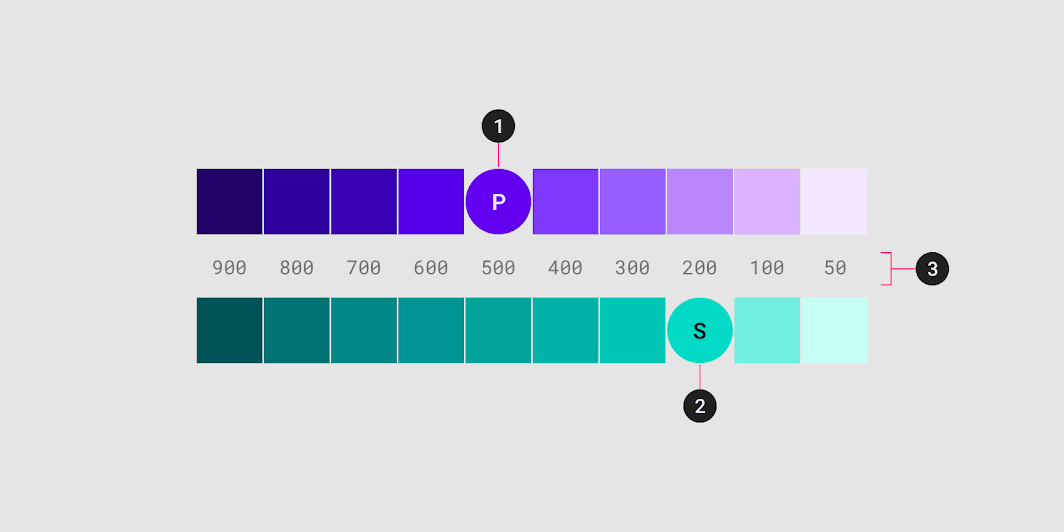
Material Design organizes colors into primary and secondary palettes, each with a main color and lighter/darker variants. Source: Material Design 2
Think of a theme as a dress code for your application.
A dress code doesn't say "wear the navy blazer with the white shirt and the brown shoes." It says "business casual." Everyone shows up looking appropriate, but nobody needed item-by-item instructions.
A theme works the same way. It doesn't tell a button "be #6366F1." It tells the button "use the primary color." What primary is, that's defined once, in one place, and everything in the app respects it.
This is what makes a theme powerful:
One change, everywhere. Update "primary" from blue to purple, and every primary-colored element updates automatically.
Dark mode for free. A dark theme is just a second set of values for the same roles. "Primary" is still "primary", it just looks different in the dark.
Automatic consistency. If a button, a link, and a chip are all "primary," they always match. No risk of one being #3B82F6 and another being #3B83F6 because of a typo.
This is the actual theme object developers work with. Notice: it's just role names and hex values, the same information you'd put in a design document, just in a structured format.
js
const theme =createTheme({
palette:{
primary:{main:"#6366F1"},
secondary:{main:"#EC4899"},
error:{main:"#EF4444"},
warning:{main:"#F59E0B"},
info:{main:"#3B82F6"},
success:{main:"#22C55E"},
background:{
default:"#FAFAFA",
paper:"#FFFFFF",
},
text:{
primary:"#1E293B",
secondary:"#64748B",
},
},
});
Change any value here, and every component in the app updates automatically.
Why Not Just Call It Blue?
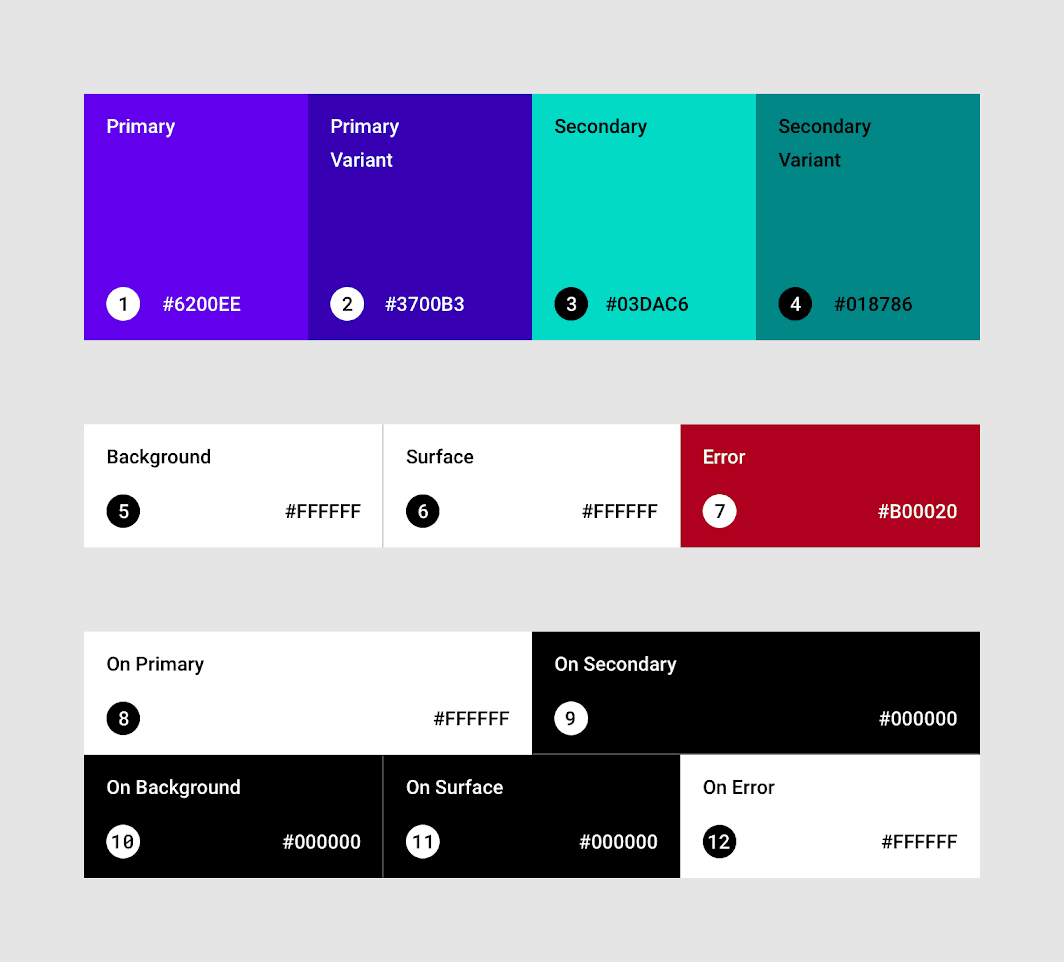
The baseline Material color scheme: each color has a role name like Primary or Secondary, not a color name like blue or pink. Source: Material Design 2
This was the exact question in our conversation, and it deserves a real answer.
Because the name needs to survive change.
"Blue" describes what the color looks like right now. "Primary" describes what the color does. One is a snapshot, the other is a role.
Consider this scenario: you've defined your main brand color as blue and annotated it across 40 screens. Marketing decides to rebrand to purple. With color names:
"Blue" → wrong everywhere. Every reference is now a lie. You and the dev team both need to find-and-replace across everything.
"Primary" → still correct. You update one value in the theme. Done.
The same logic applies to every role-based name in the system. "Error" will always mean "something went wrong," whether it's red today or orange tomorrow. "Surface" will always mean "the background of a card or dialog," whether it's white in light mode or charcoal in dark mode.
Semantic names are stable identifiers. They describe the job of a color, not the appearance. That's why developers insist on them, not to be difficult, but because it's the only naming that doesn't break when things change.
What Is background.paper?
This one tripped us up the most, so let's tackle it head-on.
The name comes from Material Design. Google's design system that our component library (Material UI) is built on. Material Design uses a physical metaphor: the interface is made of sheets of material at different elevations, like papers stacked on a desk.
background.default is the desk, the base layer, the page background.
background.paper is a sheet of paper on that desk, a card, a dialog, a dropdown, a sidebar. Anything that visually "sits above" the page.
The naming isn't about the color. It's about the layer. In a light theme, "paper" might be white. In a dark theme, it might be dark grey. Either way, it means the same thing: the surface color for elevated elements.
That's why "grey" doesn't capture it. "Grey" tells you the color. "Paper" tells you where and why, which is what both designers and developers actually need to communicate.
You don't have to love the name. But once you know it means "card/dialog/elevated surface background," it's actually faster than specifying a hex value for every card on every screen.
What the Theme Handles for You
Once you define the core palette, the theme does more than just store your colors, it actively works with them. Components derive hover states, focus rings, and shadows automatically. Lighter and darker variants are generated for you. Understanding what the theme handles on its own helps you avoid specifying things that are already taken care of.
Can I Use Transparent Colors in the Theme?
This came up when we discussed hover states and subtle backgrounds. The short answer: no, theme colors should always be opaque.
The reason is that components already handle transparency on their own. When a button has a hover effect, it doesn't use a separate "hover color" from the theme. Instead, it takes the existing theme color and applies its own transparency, for example, 8% opacity for a subtle hover, 12% for a focused state, 20% for a pressed state. Shadows, ripples, and overlays all work the same way: they derive their transparency from the solid base color.
If you define a theme color that's already semi-transparent, say, a success green at 50% opacity, those automatic transparency layers stack on top of it. The result is unpredictable: hover states that are barely visible, ripples that look washed out, or elements that change appearance depending on what's behind them.
The rule is simple:
In the theme: define solid, opaque colors.
In a specific component: if you need transparency for a particular design decision, apply it there, not in the theme.
Tip
Think of theme colors as ingredients, not finished dishes. A chef (the
component) decides how much of each ingredient to use. If you pre-dilute the
ingredients, every recipe comes out wrong.
This keeps the system predictable. Every component can rely on the theme color being a stable, opaque value and adjust its own transparency as needed.
What About primary.light and primary.dark?
When you define primary.main in the theme, Material UI automatically generates two additional variants: primary.light (a lighter version) and primary.dark (a darker version). It also calculates primary.contrastText, the text color that ensures readability against the main color.
The instinct from a design perspective is to specify these manually. And you can. MUI allows it. But there's a reason the defaults exist: the generated variants are derived with perceptual contrast in mind, not just "make it lighter" or "make it darker." The algorithm ensures that light and dark variants maintain a consistent visual relationship with the main color across the entire palette.
Manually overriding them isn't wrong, but it creates extra work:
You need to verify contrast ratios for accessibility (WCAG AA requires at least 4.5:1 for normal text).
You need to update three values instead of one whenever the brand color changes.
You risk inconsistencies if primary.light and secondary.light were derived using different logic.
The practical recommendation: start with the calculated variants. If a specific variant doesn't look right for your design, override that one. But treat the generated values as sensible defaults, not placeholders you need to fill in.
Components and the Palette
Now that the theme defines what each color role means, the next question is: how do components actually use them? The short version, they don't pick their own colors. They borrow from the palette, and you control which role they use.
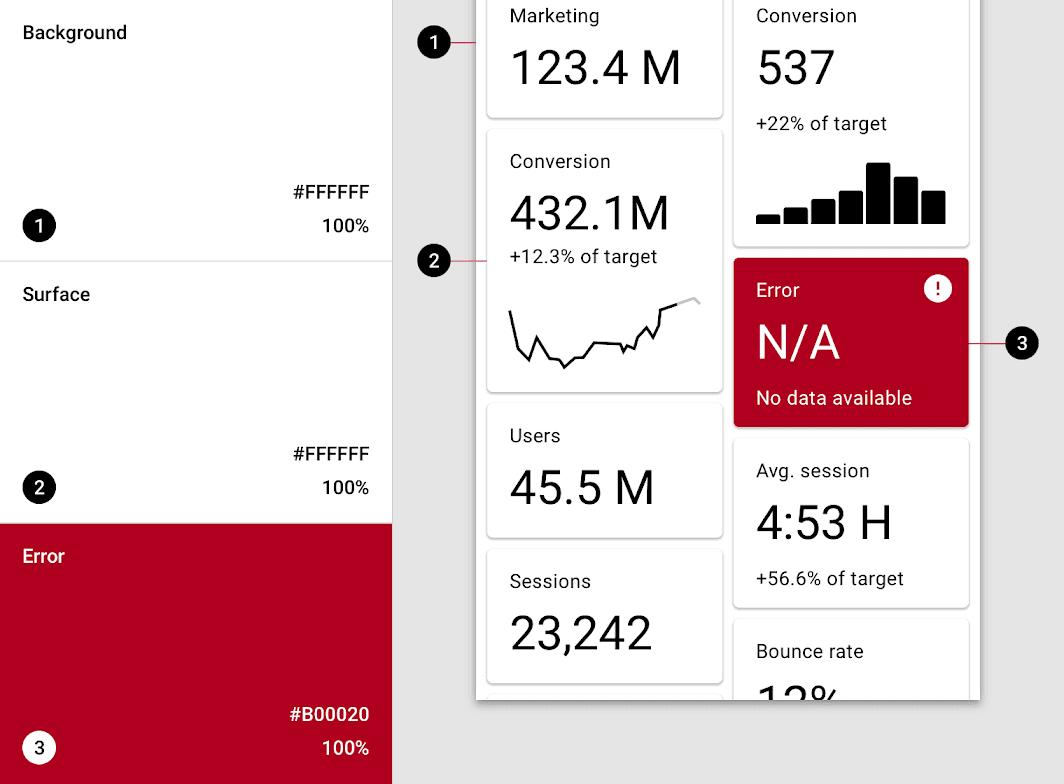
From palette to UI: color roles defined in the theme are applied to specific components on screen. Source: Material Design 2
Components Borrow Colors
If you use Figma, you already understand components intuitively. A Figma component with variants works exactly like a code component with configurable options:
In Figma
In code
You create a "Button" component
Developers create a Button
You add variant Size = Small
They set size = "small"
You add variant Style = Outlined
They set variant = "outlined"
You add variant Color = Primary
They set color = "primary"
One Button. Many configurations. No "SmallBlueButton" and "LargeRedButton" as separate things.
The key insight: a component doesn't own its colors. A Button doesn't know it's blue. It knows it's "primary." The theme decides what "primary" looks like. This is the same as applying a Figma color style to a component: the component references the style, not the raw hex value. Change the style, and every component using it updates.
A Button doesn't contain any color values. It just says "I'm primary", and the theme fills in the rest:
jsx
// The Button references a role, not a color
<Buttoncolor="primary">Save Changes</Button>
<Buttoncolor="error">Delete Account</Button>
// A Card automatically uses the "paper" background
Warning banners, confirmation dialogs for risky actions
Info
Neutral information, no urgency
Tooltips, informational badges, help text
Success
A positive outcome
Success notifications, completion checkmarks
Background (default)
That's ten roles. From these ten, an entire application can be colored consistently: across light mode, dark mode, and any future brand update.
Only ten roles?
You can extend the theme with custom colors for specialized cases like data
visualizations or marketing highlights. But the constraint is intentional.
The more roles you add, the harder the system is to maintain, and the less likely every component will use them consistently. A theme with 30 custom roles is just a spreadsheet of hex values with extra steps. Ten roles force decisions about what matters, and that discipline is what keeps the system working across modes, brands, and future changes without falling apart.
Your New Workflow
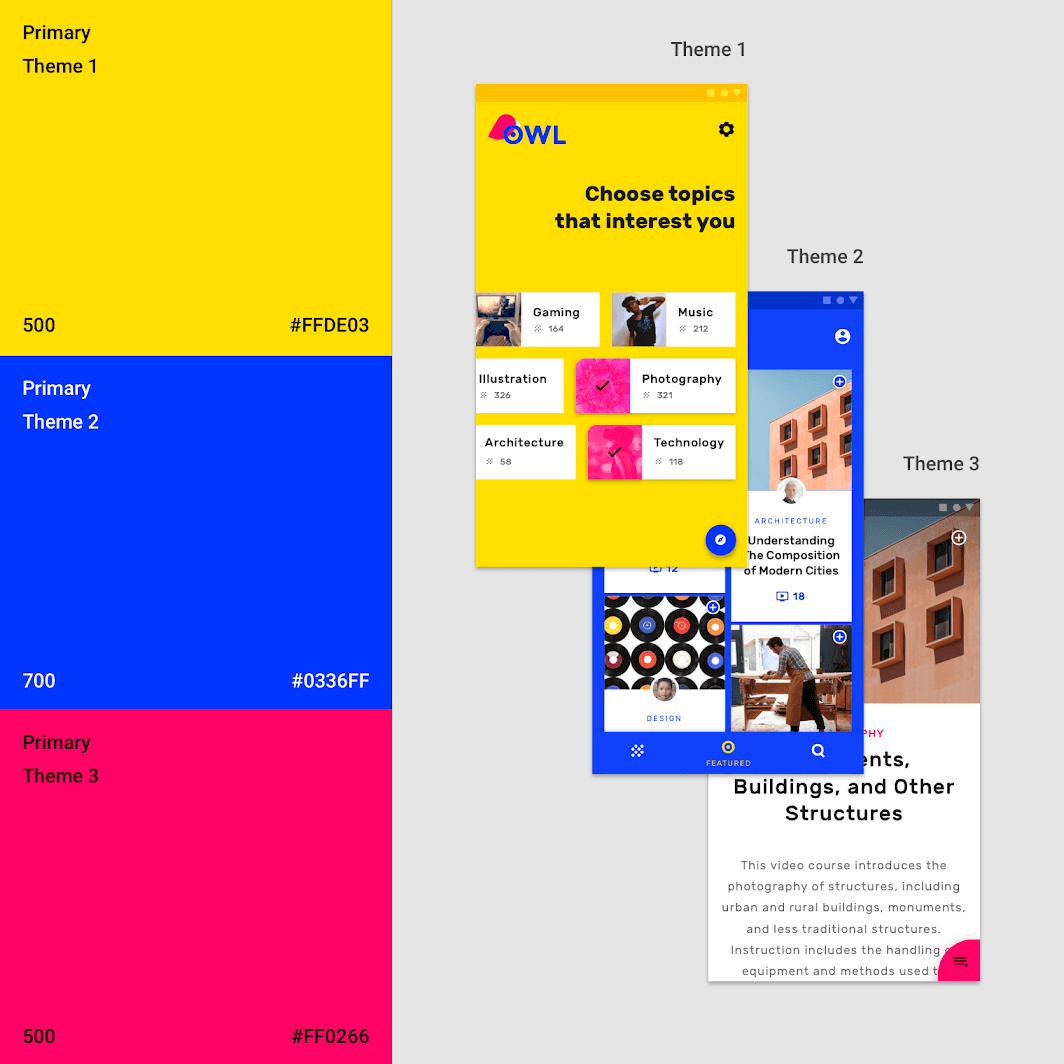
One layout, three themes: changing the primary color transforms the entire app. This is the power of role-based color naming. Source: Material Design 2
Here's the practical payoff. Instead of annotating every screen with hex values, you can provide a theme definition: one document that maps roles to your chosen colors:
Role
Color
Purpose
Primary
#6366F1Indigo
Brand color, main actions
Secondary
#EC4899Pink
Accents, secondary actions
Error
#EF4444Red
Errors, destructive actions
Warning
#F59E0BAmber
Warnings, caution states
Info
#3B82F6Blue
Informational elements
Success
#22C55EGreen
Success states
Background
#FAFAFALight grey
Page background
That's the entire handoff. One table. From this, a developer configures the full theme, and every component in the app automatically uses the right colors.
For individual screens, you only need to reference roles:
"This button is primary", not "this button is #6366F1"
"This card uses the paper background", not "this card is white"
"This message is an error", not "this text is red"
Your design documents become shorter and more stable. No more updating 40 screens when a color changes. No more ambiguity about which grey is which. And developers can implement your designs faster because the translation step disappears.
Speaking the Same Language
This isn't about developers telling designers how to work. It's about finding a language that both sides speak fluently.
You bring the visual judgment, which colors look right, which combinations create the right mood and hierarchy. That expertise doesn't change. What changes is the format of the handoff: instead of 200 hex annotations spread across screens, you define 10 roles in one place. Less work, more clarity, and a system that scales.
When you say "primary" instead of "blue," and "paper" instead of "white," you're not learning developer jargon for the sake of it. You're using stable names that translate directly into working code, survive brand changes, support dark mode, and keep the entire codebase consistent.
The theme is a contract between design and development. The moment both sides understand it, the friction disappears, and we can stop debating color names and start building together.
Sources & Further Links
There's a skill for this
Coding agents default to scattering hex codes through component files because
that is what most tutorial code in their training corpus looks like. The
/theme-colors skill is the counterweight: every color value resolves through
the theme, transparency goes through alpha(), gradients go through the sx
callback. Audits existing code by grepping for color literals and proposing
the role-based replacement. Install with npx skills@latest add saschb2b/skills --skill theme-colors or read the full theme-colors
skill.