How to Build an MCP Server: The Architecture Behind Connecting Any Software to AI
A practical guide to building MCP servers in TypeScript. Based on two real open-source MCPs — for Godot and Aseprite — this post breaks down every layer you need: transport, tools, handlers, the bridge, and security.
I built two MCP servers — one for Godot and one for Aseprite — and let an AI agent build an entire game through them. Along the way I learned that every MCP follows the same skeleton, regardless of what software it connects to.
This post is the guide I wish I had before starting. If you can write TypeScript and understand how the target software works, you can build an MCP server. The pattern is always the same — only the bridge changes.
What Is an MCP Server, Actually?
The Model Context Protocol (MCP) is an open standard that lets AI agents call functions on external software. Instead of the AI generating text and hoping you copy-paste it into the right place, the AI directly executes operations — create a file, draw a pixel, run a game, take a screenshot.
An MCP server is the middleman. It speaks the MCP protocol on one side (JSON-RPC over stdio) and speaks whatever the target software understands on the other. The AI client (Claude Code, Cursor, Cline, Windsurf) talks MCP. Your server translates that into Godot CLI calls, Aseprite Lua scripts, REST APIs, database queries — whatever it takes.
The mental model:
DIAGRAM
That's it. Everything else is implementation detail.
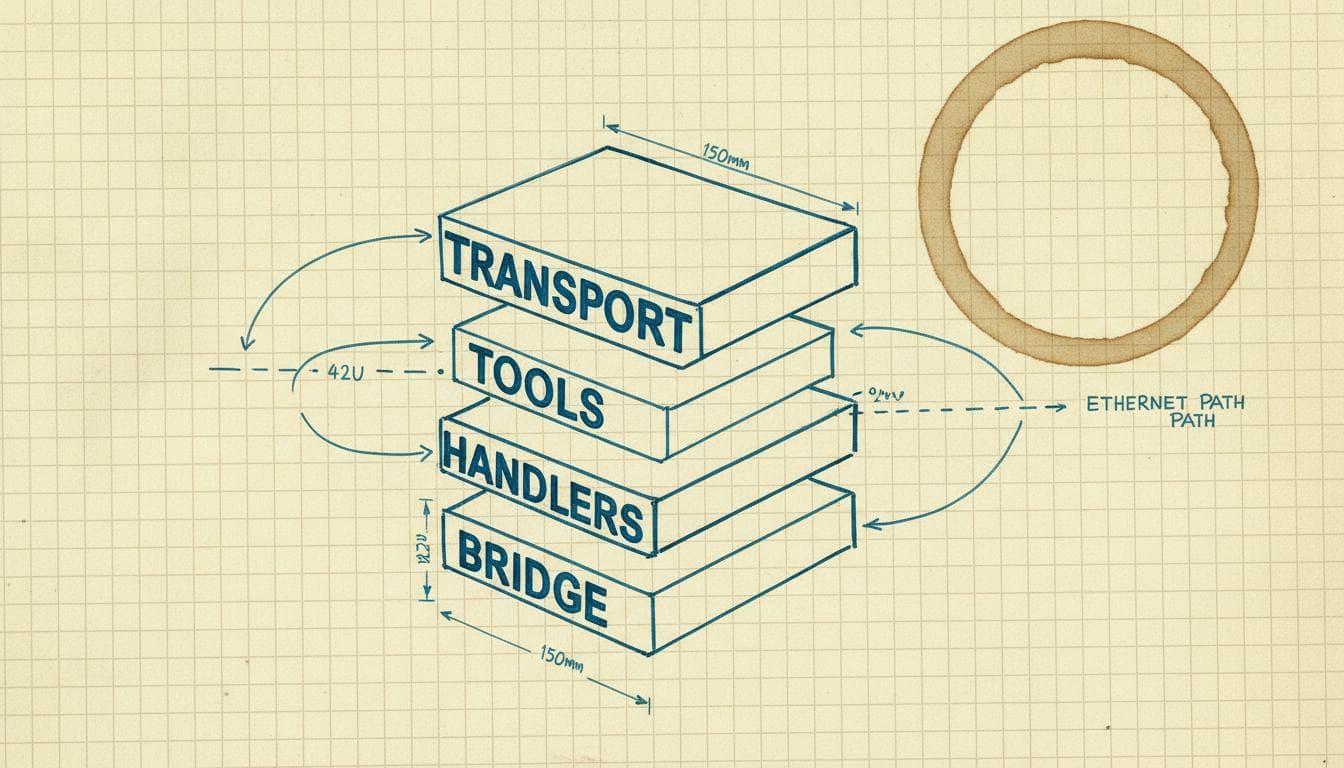
The Five Layers
Every MCP server I've built has the same five layers. Understanding them is the entire point of this post.
Layer
Name
Responsibility
1
Server & Transport
Entry point, stdio connection, process lifecycle
2
Tool Definitions
The contract — what tools exist, their parameters and descriptions
3
Router & Handlers
Request dispatch, parameter validation, business logic
4
The Bridge
How you actually talk to the target software
5
Security & Validation
Path checks, process isolation, tool filtering
Let's walk through each one.
Layer 1: Server & Transport
This is your index.ts — the entry point. Its job is minimal: create the MCP server, detect the target software, register tool handlers, and connect via stdio.
Both godot-mcp and aseprite-mcp follow the exact same pattern:
typescript
import{ Server }from"@modelcontextprotocol/sdk/server/index.js";
Why stdio? MCP clients launch your server as a child process and communicate over stdin/stdout. No HTTP, no WebSockets, no port management. The AI client starts your server, sends JSON-RPC messages to stdin, reads responses from stdout. Simple, secure, works everywhere.
The ServerContext is just a plain object that carries shared state — the path to the target executable, debug flags, configuration, and any runtime state like active processes or TCP connections:
typescript
classServerContext{
softwarePath:string;
operationsScriptPath:string;
debugMode:boolean;
toolsets?:string[];
excludeTools:string[];
activeProcess: ChildProcess |null;
// ... whatever state your bridge needs
}
Tip
The only production dependency both MCPs need is @modelcontextprotocol/sdk.
That's it. Everything else — TypeScript, ESLint, Vitest — is dev-only.
Layer 2: Tool Definitions
Tools are the contract between your MCP server and the AI. Each tool has a name, a description, and a JSON Schema for its parameters. The AI reads these definitions and decides which tool to call.
This is what a tool definition looks like:
typescript
exportconstTOOL_DEFINITIONS={
create_sprite:{
description:"Create a new sprite with the given dimensions and color mode",
inputSchema:{
type:"object",
properties:{
width:{ type:"number", description:"Sprite width in pixels"},
height:{ type:"number", description:"Sprite height in pixels"},
colorMode:{
type:"string",
enum:["RGB","Grayscale","Indexed"],
description:"Color mode for the sprite",
},
},
required:["width","height"],
},
},
// ... 60+ more tools
};
This file is the single most important file in your MCP. The AI agent reads tool descriptions to decide what to call. Bad descriptions = wrong tool calls = broken workflow.
Three rules for tool definitions:
Descriptions must be precise. "Create a new sprite file" is better than "Sprite creation tool." The AI uses these as documentation.
Mark required vs optional clearly. The required array matters. If a parameter has a sensible default, make it optional and document the default in the description.
Use enums wherever possible. Instead of type: "string" for a color mode, use enum: ["RGB", "Grayscale", "Indexed"]. This constrains the AI's choices to valid values.
The godot-mcp defines 69 tools across 13 categories. The aseprite-mcp defines 65+ tools across 14 categories. Both store all definitions in a single tool-definitions.ts file — one place to see every capability.
Layer 3: Router & Handlers
The router connects MCP protocol requests to your handler functions. It handles two operations: listing available tools and executing a tool call.
The HANDLER_MAP is a flat lookup table — tool name to handler function:
typescript
constHANDLER_MAP: Record<string, ToolHandler>={
create_sprite: handleCreateSprite,
open_sprite: handleOpenSprite,
draw_pixel: handleDrawPixel,
draw_line: handleDrawLine,
// ... every tool maps to exactly one handler
};
The Handler Pattern
Every handler follows the same four steps. This consistency is what keeps the codebase maintainable at 65+ tools:
typescript
asyncfunctionhandleDrawPixel(
args: Record<string,unknown>,
ctx: ServerContext,
):Promise<ToolResponse>{
// 1. Normalize parameters (snake_case from MCP → camelCase for TS)
const params =normalizeParameters(args);
// 2. Validate required parameters
if(!params.inputPath){
returncreateErrorResponse("inputPath is required");
}
validatePath(params.inputPath);// Security check
// 3. Execute via bridge
const result =awaitexecuteOperation(
ctx.softwarePath,
ctx.operationsScriptPath,
"draw_pixel",
params,
);
// 4. Return structured response
return{
content:[{ type:"text", text: result.stdout }],
isError:false,
};
}
Organize handlers by domain. Both MCPs group them into files like sprite-handlers.ts, drawing-handlers.ts, export-handlers.ts. Each file exports 3-8 functions. No file exceeds ~25 KB. This keeps each module focused on one concern.
Info
When you add a new tool, you touch exactly four places: the tool definition,
the handler function, the handler map entry, and the operations script. Both
MCPs document this checklist in their CONTRIBUTING.md.
Layer 4: The Bridge
This is the hard part — and the part that changes for every target software. The bridge is how your TypeScript server actually communicates with the software it controls.
There are three common bridge patterns:
Pattern A: Subprocess with Script Injection
Used by: aseprite-mcp
Aseprite supports batch mode (aseprite -b) and Lua scripting. But there's no way to call Aseprite's internal API from outside — you can't send HTTP requests to it, it has no socket server, no CLI for pixel operations. The only way to programmatically draw pixels, manipulate layers, or export sprites is through a Lua script running inside Aseprite.
This is why operations.lua exists. It's not optional — it's the entire bridge.
DIAGRAM
The Lua script is a command dispatcher — a lookup table of operation handlers, each one translating JSON parameters into Aseprite API calls:
On the TypeScript side, the executor spawns this process:
typescript
asyncfunctionexecuteOperation(
asepritePath:string,
scriptPath:string,
operation:string,
params: Record<string,unknown>,
):Promise<{ stdout:string; stderr:string}>{
const args =[
"-b",
"--script-param",
`operation=${operation}`,
"--script-param",
`params=${JSON.stringify(params)}`,
"--script",
scriptPath,
];
returnexecFileAsync(asepritePath, args);
}
Key insight: the Lua script is necessary because Aseprite's scripting API is only accessible from inside the Aseprite process. If Aseprite exposed a REST API or a CLI for every operation, you wouldn't need Lua at all. The bridge adapts to whatever the target software gives you.
Pattern B: Subprocess with Headless Script (same idea, different language)
Used by: godot-mcp (for scene/script operations)
Godot has the same constraint — its scene manipulation API is only accessible from inside a running Godot process. So godot-mcp spawns Godot in headless mode with a GDScript that acts as the operations dispatcher:
DIAGRAM
The pattern is identical to the Lua bridge. The language changes (GDScript instead of Lua), but the architecture doesn't.
Pattern C: TCP Socket for Real-Time Communication
Used by: godot-mcp (for interactive/gameplay operations)
Some operations need a persistent connection. When testing gameplay — sending keypresses, taking screenshots mid-game, reading game state — you can't spawn a new Godot process for each action. The game needs to be running continuously.
godot-mcp solves this by injecting a TCP server (an autoload script) into the running game:
The question to ask: "How does this software let me automate it?" The answer determines your bridge. If the software has a Lua scripting API, write a Lua dispatcher. If it has a REST API, use fetch. If it has a CLI, use execFile. The rest of the MCP — server, tools, handlers, security — stays the same.
Layer 5: Security & Validation
An MCP server gives an AI agent real power over real software. That means security isn't optional. Both MCPs implement the same core protections.
Path Validation
Every file path that comes from the AI gets validated before use. The number one threat is directory traversal — the AI (or a prompt injection through the AI) sending ../../etc/passwd as a file path.
// BAD: string concatenation, shell injection possible
exec(`aseprite -b --script ${scriptPath}`);
execFile passes arguments as an array directly to the process. exec passes a string through the shell, which means special characters (; rm -rf /) get interpreted. Never use exec.
Tool Filtering
Both MCPs support restricting which tools are available:
bash
# Only expose specific categories
MCP_TOOLSETS="sprite,drawing,export"
# Block dangerous tools
MCP_EXCLUDE_TOOLS="delete_file,batch_resize"
# Full read-only mode — no file modifications
MCP_READ_ONLY=true
The filtering happens in the router before tools are listed to the AI. If a tool isn't listed, the AI can't call it.
Process Isolation
Every Aseprite operation runs in its own subprocess. If Aseprite crashes on a malformed input, the MCP server keeps running. The AI retries with different parameters. No shared state is corrupted.
Godot's headless operations work the same way — one process per operation, spawned and cleaned up automatically.
Putting It Together: Your MCP Starter Structure
Here's the minimum file structure for a new MCP server:
MCP Server Starter
your-mcp
src
index.tsLayer 1: Server & transport
context.tsShared state
types.tsType definitions
tool-definitions.tsLayer 2: Tool schemas
tool-router.tsLayer 3: Request routing
executor.tsLayer 4: Bridge to target software
software-path.tsAuto-detect target executable
utils.tsLayer 5: Security & helpers
handlersLayer 3: Handler implementations
basic-handlers.ts
advanced-handlers.ts
scriptsLayer 4: Bridge scripts (if needed)
operations.luaor .gd, .py, .rb
package.json
tsconfig.json
README.md
The Checklist
When building a new MCP, work through these steps:
Identify the bridge. How does the target software let you automate it? CLI? Scripting API? HTTP? Socket? This determines your Layer 4 approach.
Write one operation end-to-end. Pick the simplest useful operation (e.g., "create new file" or "get version info"). Wire it through all five layers. Once one tool works, adding more is mechanical.
Define tools carefully. The AI only knows what you tell it. Write descriptions as if explaining to a junior developer. Include parameter defaults, valid ranges, and what the tool returns.
Validate everything from outside. Paths, parameter types, enum values — validate at the handler level before passing to the bridge. The AI will occasionally send unexpected values.
Test the tool listing. Run npx @anthropic/mcp-inspector to see exactly what the AI sees. If the tool list is confusing to you, it's confusing to the AI.
One production dependency. That's all you need to speak MCP.
What I Learned Building Two MCPs
The bridge is 80% of the work. The MCP protocol layer is straightforward — the SDK handles it. The hard part is understanding the target software's automation API and building a reliable translation layer. For Aseprite, that meant writing 75 KB of Lua. For Godot, it meant 100 KB of GDScript plus a TCP protocol.
Tool count doesn't matter — tool quality does. The godot-mcp has 69 tools, but the AI uses write_script, run_interactive, and game_state for 90% of its work. A small set of well-designed tools beats a large set of mediocre ones. Start with five tools and expand based on what the AI actually needs.
Descriptions are documentation for an AI reader. I've seen the AI choose the wrong tool because the description was ambiguous. "Manage sprites" is useless. "Create a new sprite file with specified dimensions and save it to the given path" is unambiguous. Write descriptions like you're writing API docs.
Process isolation saves you. When the AI sends bad parameters to Aseprite and it crashes, the MCP server stays up. The next operation works fine. If you run operations in-process, one bad call takes down everything.
The same skeleton works everywhere. After building the first MCP, the second one took a fraction of the time. The server setup, tool definitions, router, handler pattern, security utilities — all of it transfers. Only the bridge scripts change.
The protocol is simple. The architecture is reusable. The hard part is always the bridge — understanding how to talk to the software you're connecting. Once you solve that, you've built an MCP.
Sources & Links
There's a skill for this
The five-layer scaffold exists as an agent skill. Install it with npx skills@latest add saschb2b/skills --skill scaffold-mcp or read the full
scaffold-mcp skill.